Picture guide
How to show Google Ads only in the area you serve
Eleven clicks, each one circled on a real Google Ads screen. Afterwards your ads show only to people who are in your area, not to people elsewhere who once searched for it.
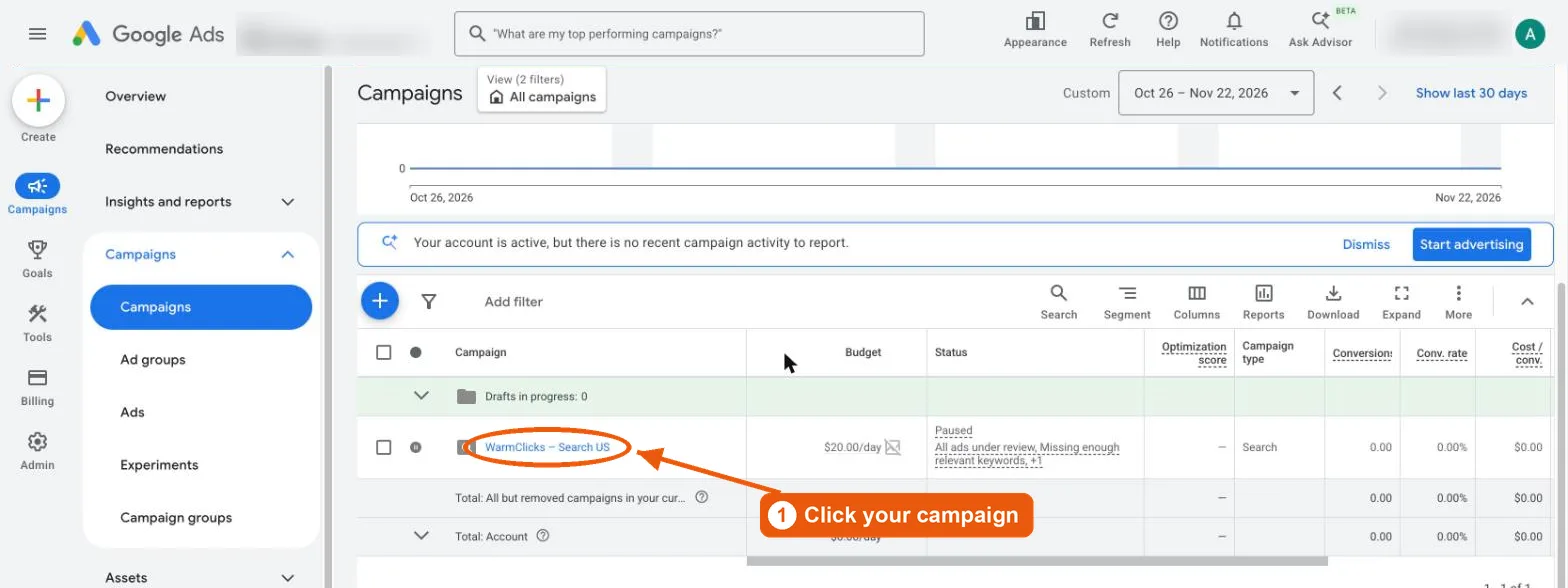
1Open ads.google.com, click Campaigns in the bar on the left and then the name of your campaign.
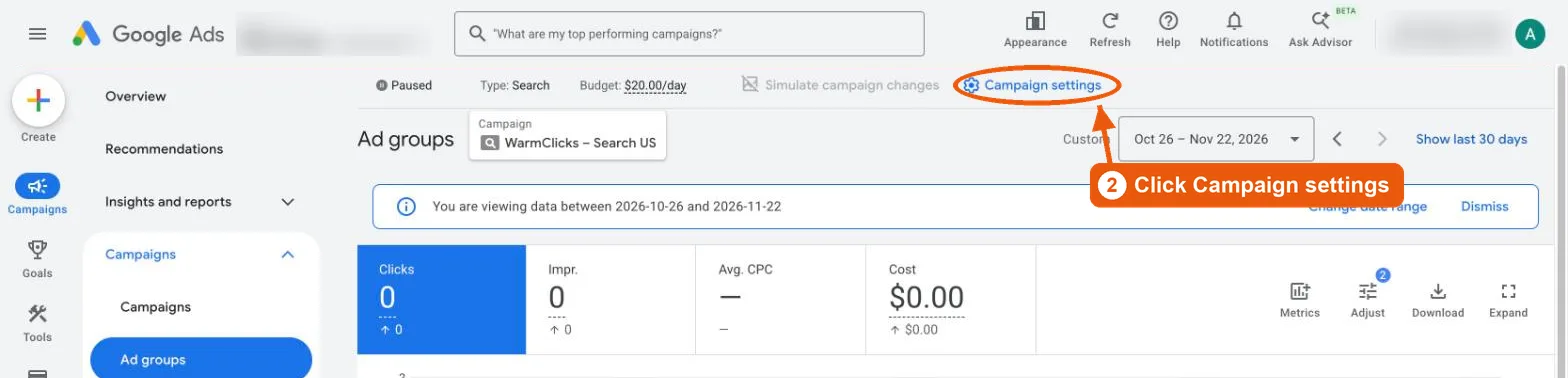
2Click Campaign settings at the top.
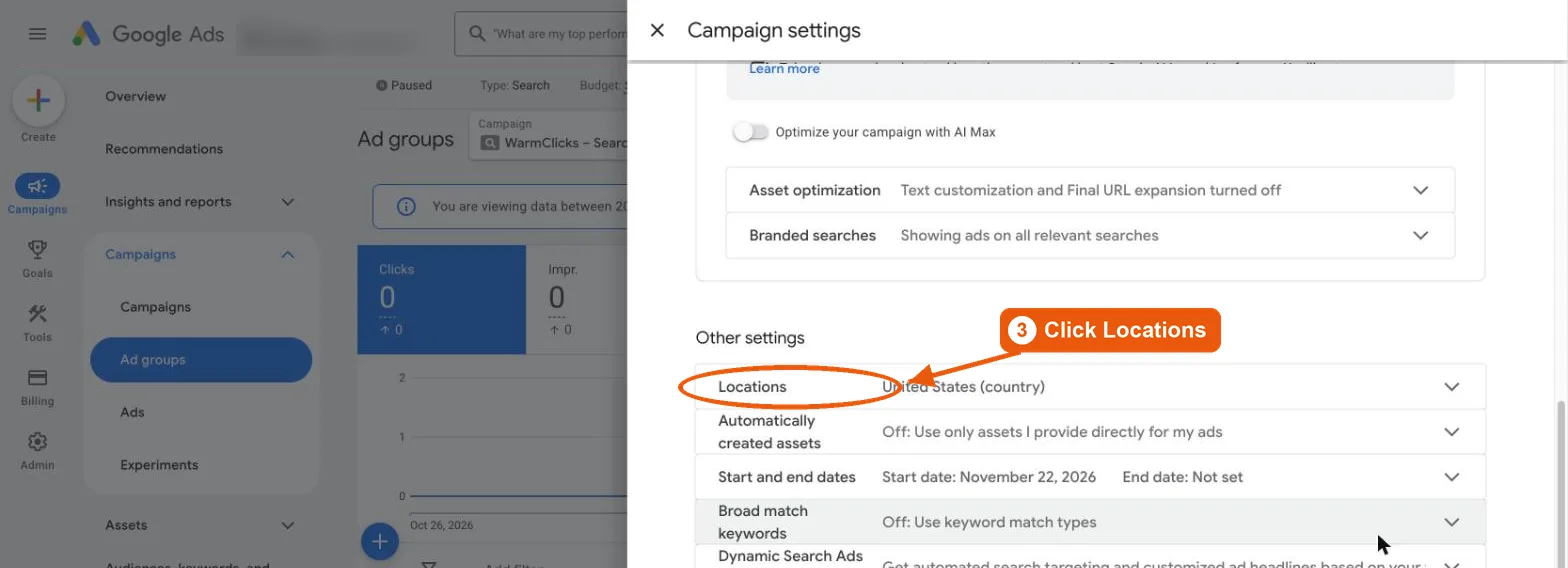
3Scroll down to Other settings and click Locations.
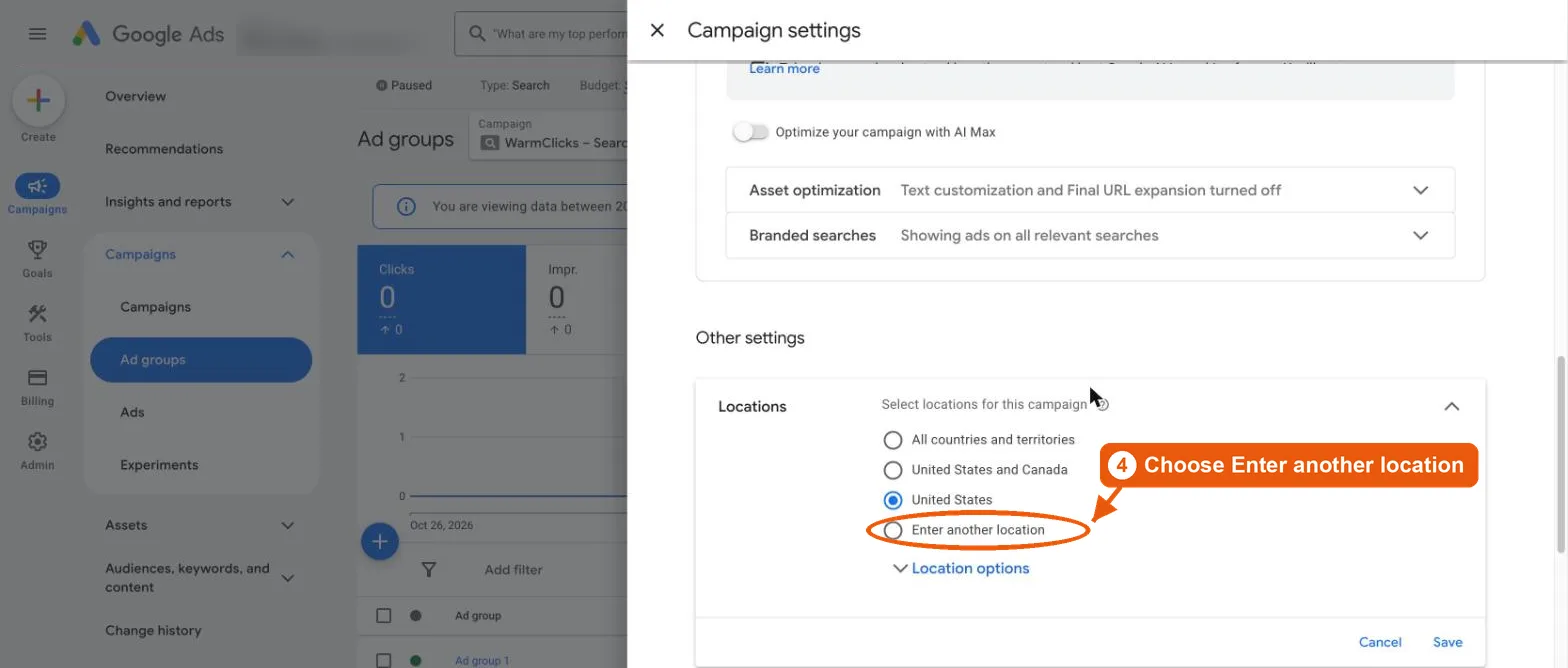
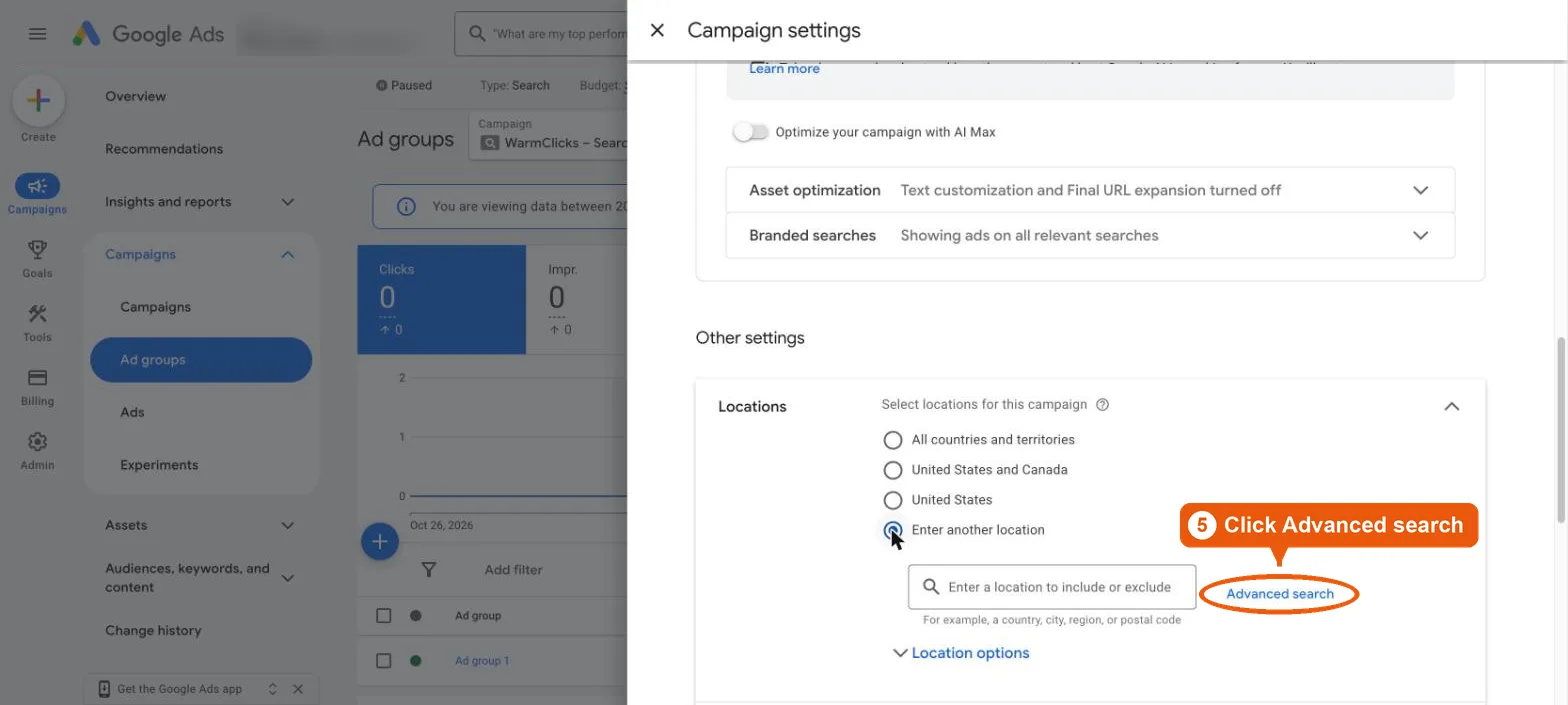
4Choose Enter another location. If a whole country or state is already in the list underneath, remove it with the ×.
5Click Advanced search.
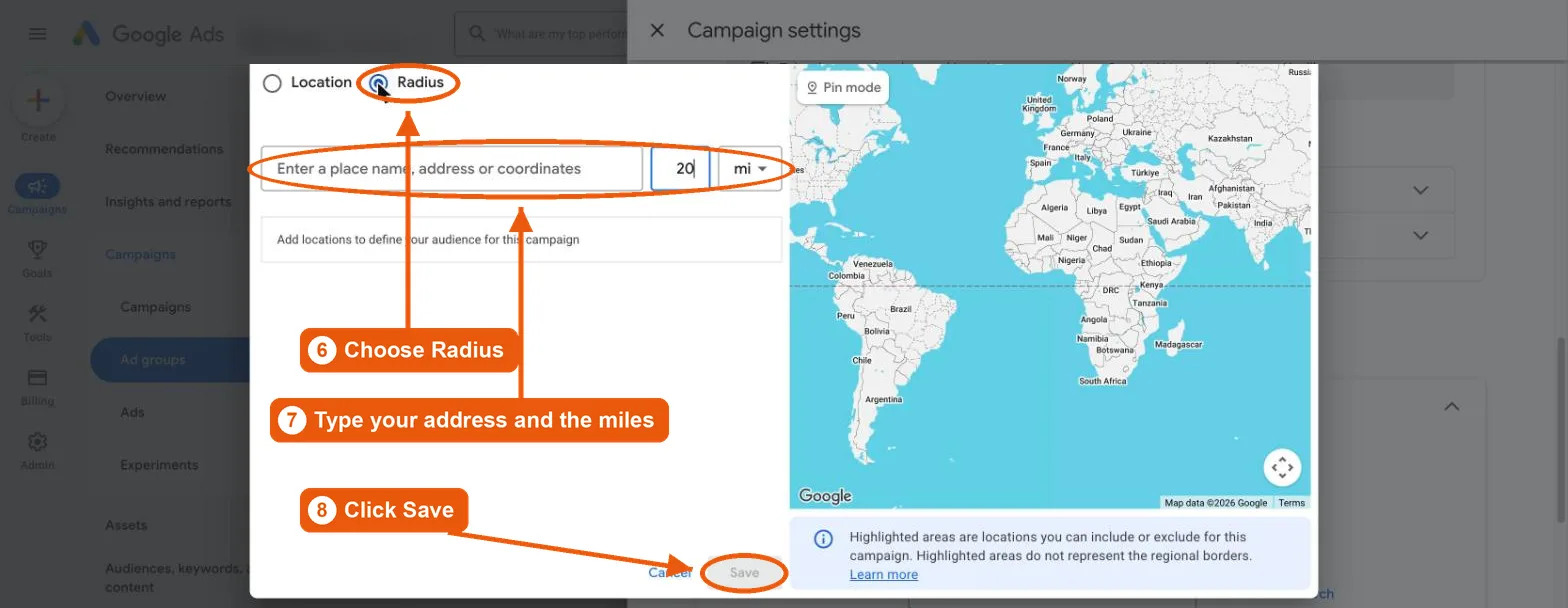
6–8Choose Radius (6). Type your business address, pick it from the list and enter the miles from your WarmClicks report (7). Click Save (8).
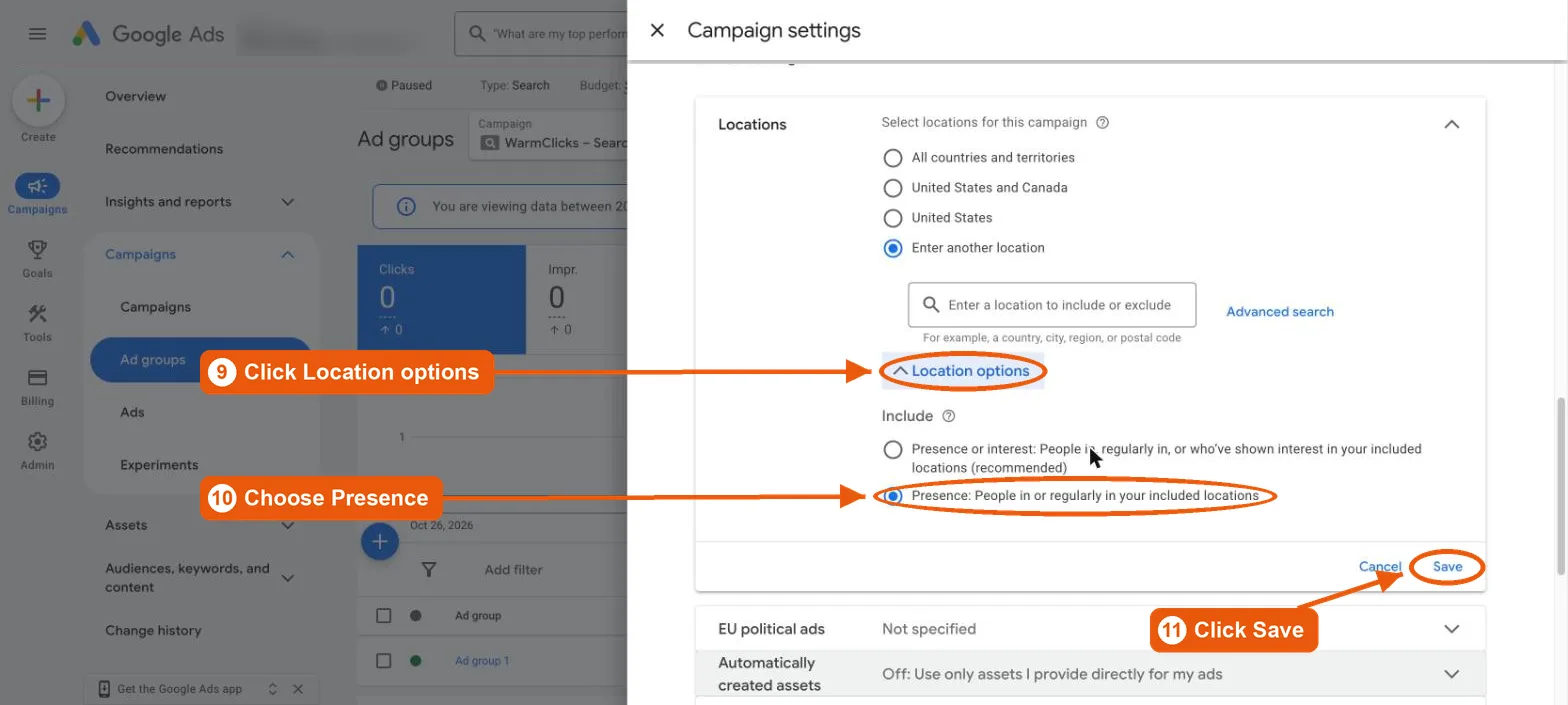
9–11Click Location options (9) and choose Presence: People in or regularly in your included locations (10). Click Save (11).
Serving a list of towns instead of a radius? In step 6 keep Location and type the towns one by one.
The change counts from the moment you save. Your next WarmClicks check shows how many clicks still come from outside your area.
Best on a computer: the screens above are ads.google.com in a desktop browser. On a phone, tap a picture to open it full size.
Screens from Google Ads, November 22, 2026. Google sometimes moves buttons; if one looks different, write to connect@warmclicks.com.