Picture guide
How to upload your WarmClicks file to Google Ads
Nine clicks, each one circled on a real Google Ads screen. Google Ads' own website reads the file, so you don't need Google Ads Editor or any other software. We tested this on our own account: 24 of 24 rows passed Google's check.
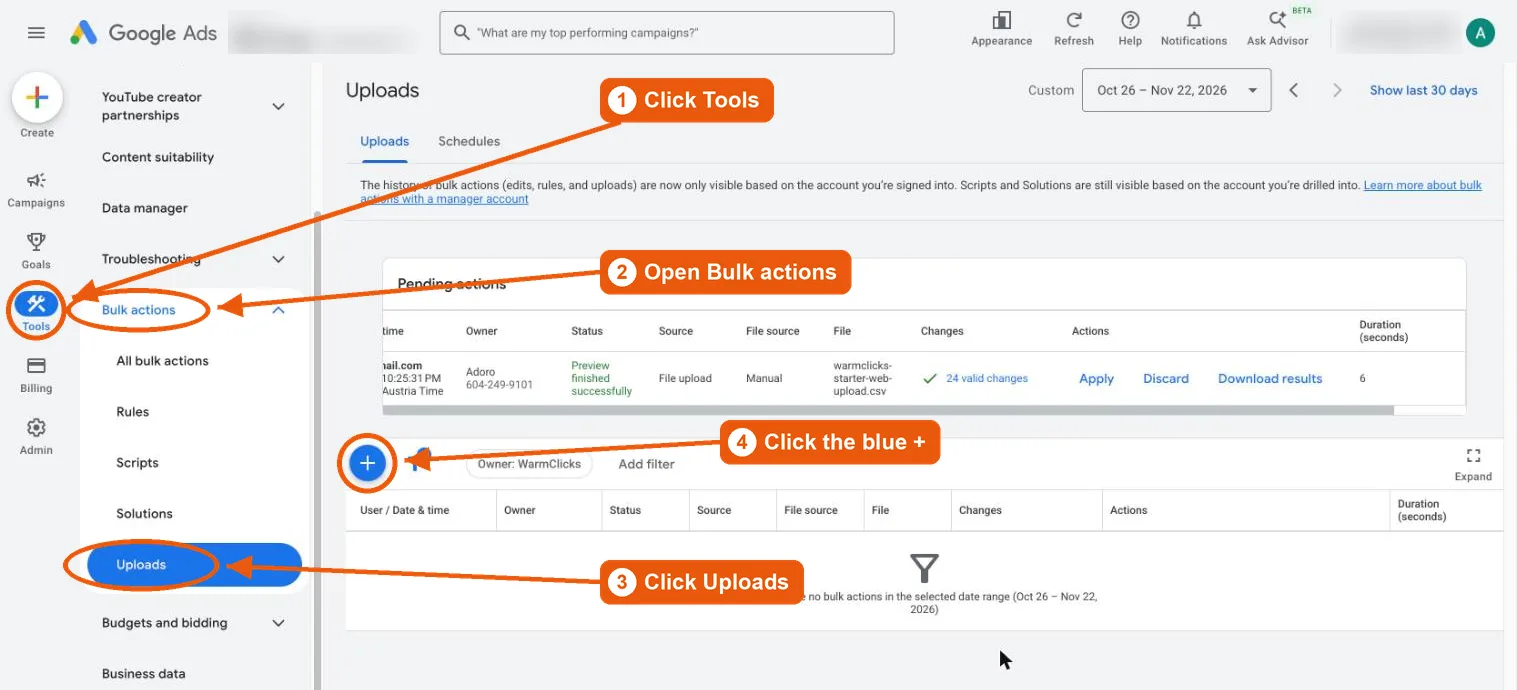
1–4Open ads.google.com. Click Tools in the bar on the left (1), open Bulk actions (2), click Uploads (3), then the blue + (4).
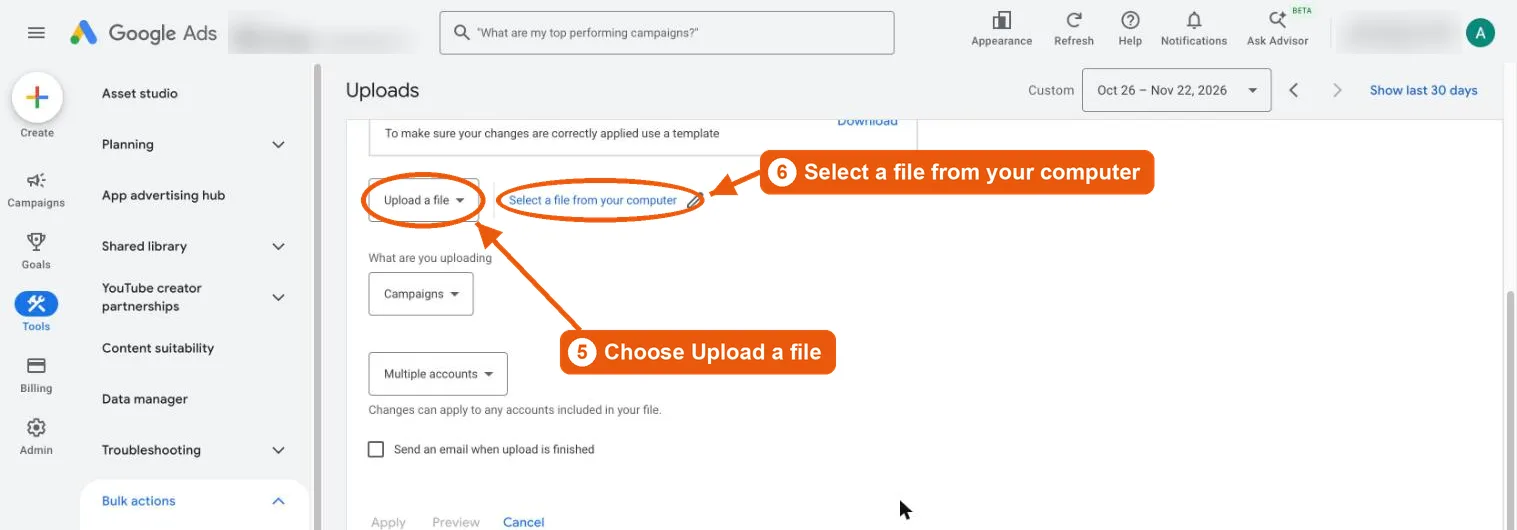
5–6Choose Upload a file (5), click Select a file from your computer and pick the file from WarmClicks (6). Leave “What are you uploading” on Campaigns.
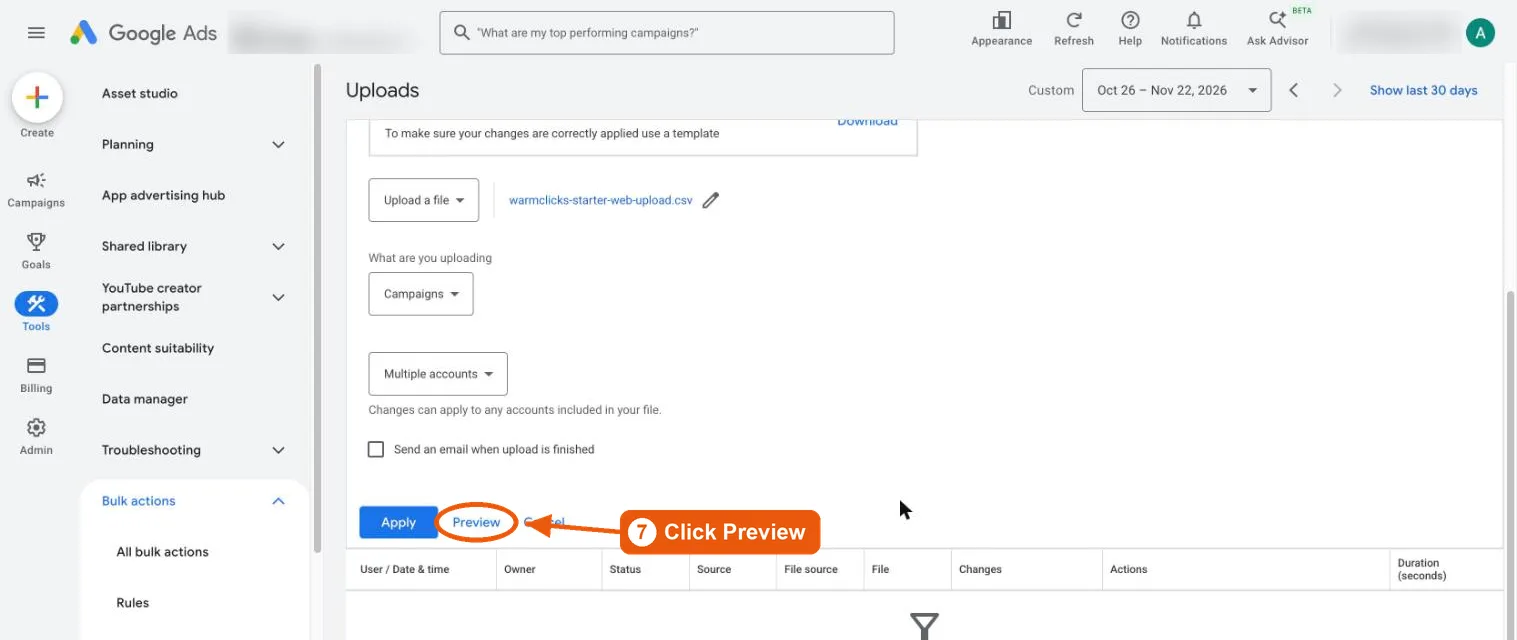
7Click Preview. Google checks every row first; nothing changes in your account yet.
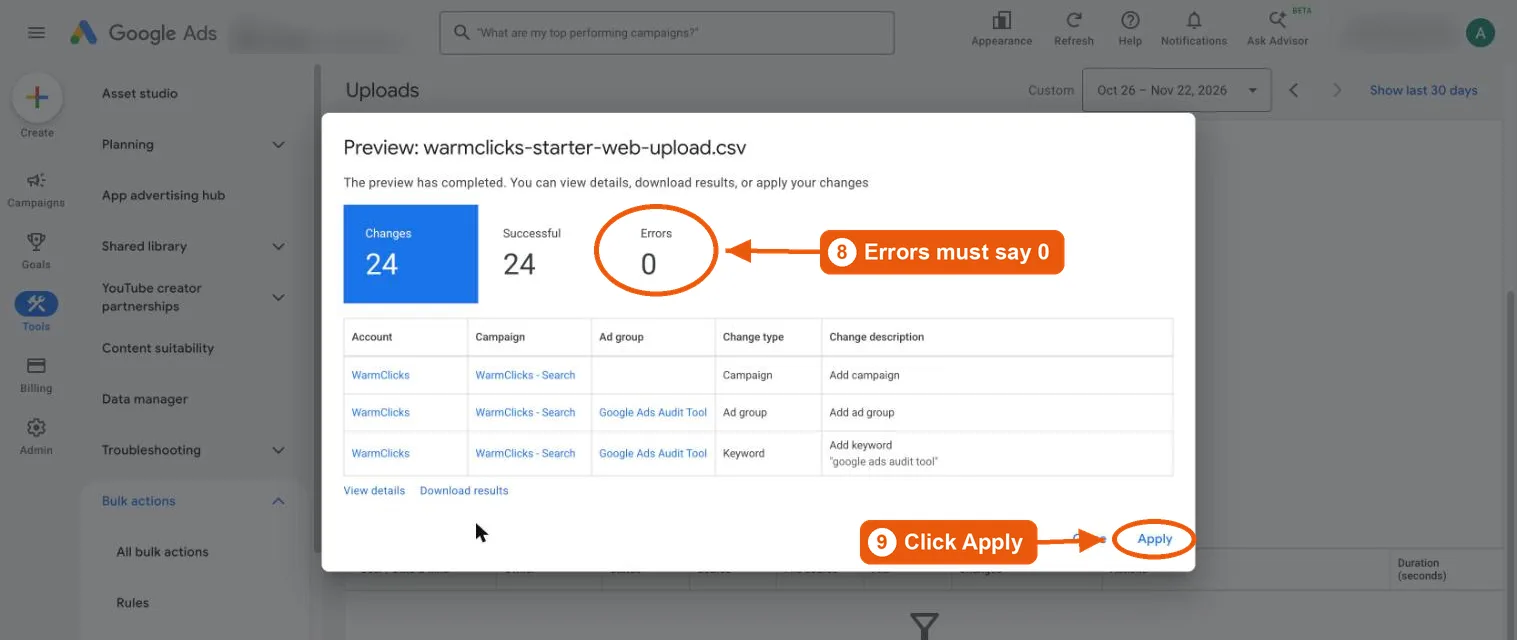
8–9Errors must say 0 (8). Then click Apply (9). A new campaign arrives paused, so nothing is spent until you switch it on.
The file holds your Google Ads customer ID, so it only changes the account it was made for.
Google's upload has no column for the ad schedule or the bid limit: set those by hand afterwards (our ad schedule guide shows how).
Errors above 0? Click “Download results”: Google writes the reason next to each row. Send it to connect@warmclicks.com and we fix the file.
Best on a computer: the screens above are ads.google.com in a desktop browser. On a phone, tap a picture to open it full size.
Screens from Google Ads, November 22, 2026. Google sometimes moves buttons; if one looks different, write to connect@warmclicks.com.